> ## Documentation Index
> Fetch the complete documentation index at: https://qualcomm-3.mintlify.site/llms.txt
> Use this file to discover all available pages before exploring further.
# Enable basic RPLIDAR handling with rplidar-ros2
The `rplidar-ros2` sample application provides basic device handling for the 2D laser scanner RPLIDAR A1/A2/A3/S1/S2/S3.
## **Pipeline flow for** `rplidar-ros2`
The figure shows the pipeline of the rplidar-ros2 sample. The sample application gets the driver data from the `rplidar` SDK, and then publishes the `/scan` topic.

Figure : rplidar-ros2 pipeline
## ROS topics used in the `rplidar-ros2 ` pipeline
| ROS topic |
Message type |
Published/Subscribed by |
Description |
| `/scan` |
`sensor_msgs::msg::LaserScan` |
Published by `rplidar-ros2` |
The `/scan` topic publishes the laser scan data from the RPLIDAR. |
## Prerequisites
* You have **Set up the device** according to [Set up the environment for running sample applications](./set-up-env-for-sample-app).
* Connect the power supply and USB port of RPLIDAR A3M1.
## Run out-of-the-box `rplidar-ros2`
1. To set up the QIR SDK and ROS2 environment on the device and run `rplidar-ros2`, start a terminal and run the following commands:
```bash theme={null}
ssh root@[ip-addr]
(ssh) source /usr/share/qirp-setup.sh
(ssh) ros2 launch rplidar_ros rplidar_a3_launch.py
```
Example terminal logs showing successful node startup
```bash theme={null}
[INFO] [launch]: All log files can be found below /home/ubuntu/.ros/log/2026-08-12-02-11-07-846867-ubuntu-3237
[INFO] [launch]: Default logging verbosity is set to INFO
[INFO] [rplidar_node-1]: process started with pid [3241]
[rplidar_node-1] [INFO] [1786500668.361267056] [rplidar_node]: RPLidar running on ROS2 package rplidar_ros. RPLIDAR SDK Version:2.0.0
[rplidar_node-1] [INFO] [1786500668.407724891] [rplidar_node]: RPLidar S/N: FBE59AF2C1EA9FC0BEEB9CF374363200
[rplidar_node-1] [INFO] [1786500668.407786032] [rplidar_node]: Firmware Ver: 1.26
[rplidar_node-1] [INFO] [1786500668.407803166] [rplidar_node]: Hardware Rev: 6
[rplidar_node-1] [INFO] [1786500668.459542330] [rplidar_node]: RPLidar health status : 0
[rplidar_node-1] [INFO] [1786500668.459631645] [rplidar_node]: RPLidar health status : OK.
[rplidar_node-1] [INFO] [1786500668.759812227] [rplidar_node]: current scan mode: Sensitivity, sample rate: 16 Khz, max_distance: 25.0 m, scan frequency:10.0 Hz,
```
2. To check the topic output, run the following command:
```bash theme={null}
ros2 topic echo /scan
```
**Result:**
```bash theme={null}
header:
stamp:
sec: 1786520383
nanosec: 374856817
frame_id: laser
angle_min: -3.1241390705108643
angle_max: 3.1415927410125732
angle_increment: 0.0034828970674425364
time_increment: 0.0009069791412912309
scan_time: 1.6316554546356201
range_min: 0.15000000596046448
range_max: 25.0
ranges:
- 0.37400001287460327
- 0.375
- 0.375
- 0.375
- 0.37400001287460327
- 0.37400001287460327
- 0.37400001287460327
- 0.375
- 0.375
- 0.375
- 0.375
- 0.375
- 0.375
- 0.375
- 0.375
- 0.375
- 0.375
- 0.375
- 0.375
- 0.375
- 0.375
- 0.375
- 0.375
- 0.375
- 0.37599998712539673
- 0.37599998712539673
- 0.375
- 0.37599998712539673
...
```
3. RViz visualization screenshots showing
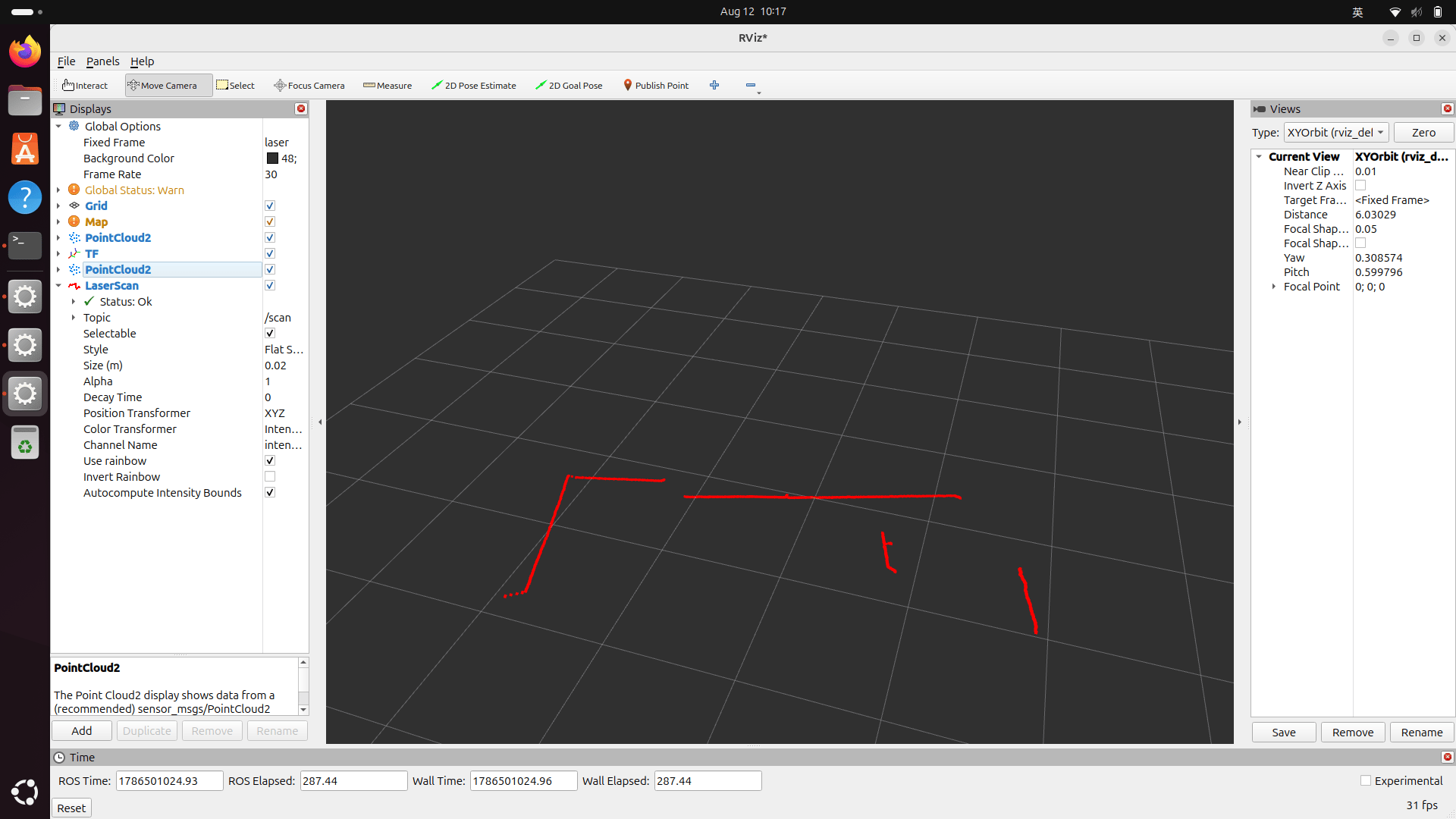
Figure : visualization on RViz