> ## Documentation Index
> Fetch the complete documentation index at: https://qualcomm-3.mintlify.site/llms.txt
> Use this file to discover all available pages before exploring further.
# Camera
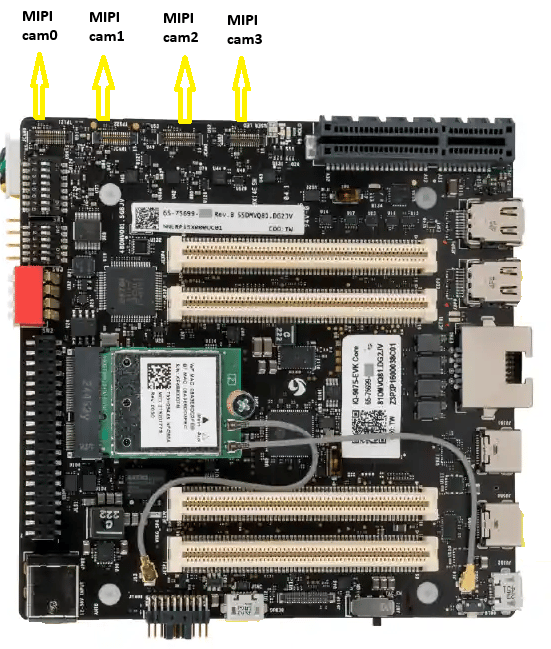
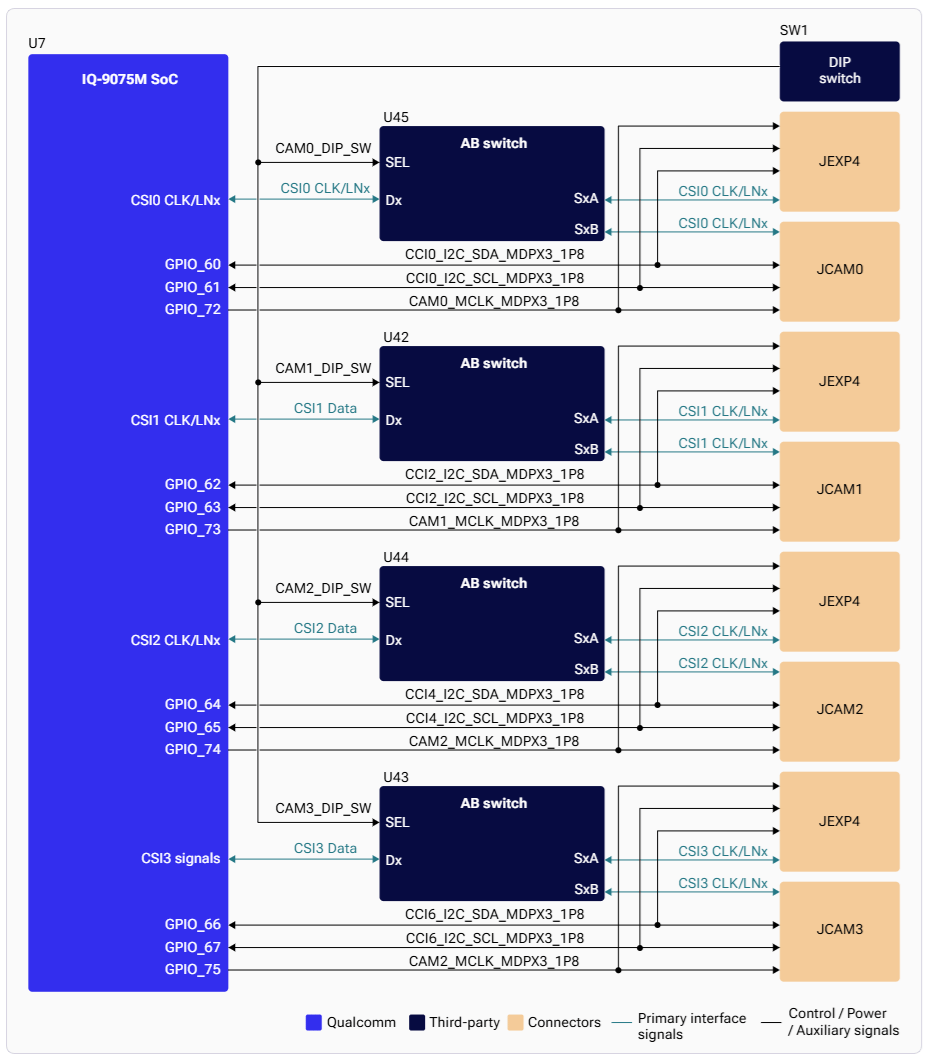
The IQ9-EVK supports camera sensor connectivity through four MIPI CSI interfaces, supporting both C-PHY and D-PHY modes.
## Hardware Architecture
### CSI Interface Mapping
| CSI Interface | Analog Switch | Camera Connector | B2B Connector |
| ------------- | ----------------- | ---------------- | ------------------- |
| CSI0 | U45 (TMUX646ZECR) | JCAM0 | JEXP4, Pins 111–120 |
| CSI1 | U42 (TMUX646ZECR) | JCAM1 | JEXP4, Pins 51–60 |
| CSI2 | U44 (TMUX646ZECR) | JCAM2 | JEXP4, Pins 40–49 |
| CSI3 | U43 (TMUX646ZECR) | JCAM3 | JEXP4, Pins 29–38 |
 ### DIP Switch Configuration
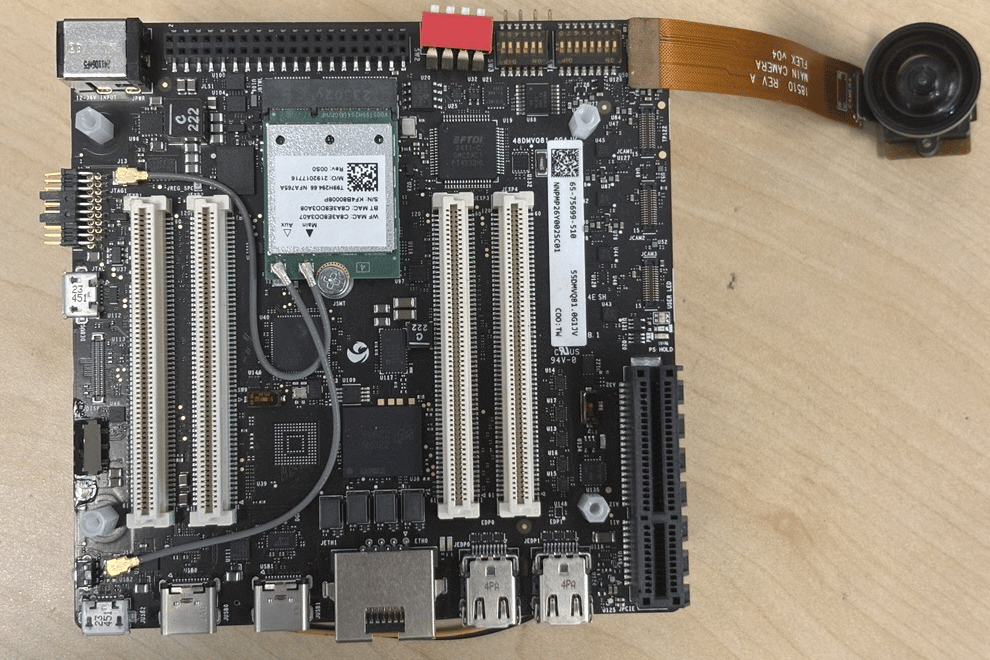
The four CSI PHYs can be routed to either MIPI camera ports or GMSL camera ports (via mezzanine board) using DIP switches.
### DIP Switch Configuration
The four CSI PHYs can be routed to either MIPI camera ports or GMSL camera ports (via mezzanine board) using DIP switches.
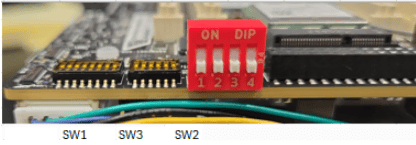 SW1 is the left series of switches in the image above.
| Switch | ON | OFF (default) |
| ------ | --------------------- | ---------------- |
| SW1-5 | CSI0 → GMSL mezzanine | CSI0 → mainboard |
| SW1-6 | CSI1 → GMSL mezzanine | CSI1 → mainboard |
| SW1-7 | CSI2 → GMSL mezzanine | CSI2 → mainboard |
| SW1-8 | CSI3 → GMSL mezzanine | CSI3 → mainboard |
## Supported Camera Sensors
### Raspberry Pi Camera Sensors
SW1 is the left series of switches in the image above.
| Switch | ON | OFF (default) |
| ------ | --------------------- | ---------------- |
| SW1-5 | CSI0 → GMSL mezzanine | CSI0 → mainboard |
| SW1-6 | CSI1 → GMSL mezzanine | CSI1 → mainboard |
| SW1-7 | CSI2 → GMSL mezzanine | CSI2 → mainboard |
| SW1-8 | CSI3 → GMSL mezzanine | CSI3 → mainboard |
## Supported Camera Sensors
### Raspberry Pi Camera Sensors
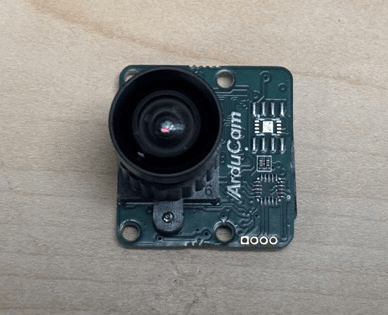
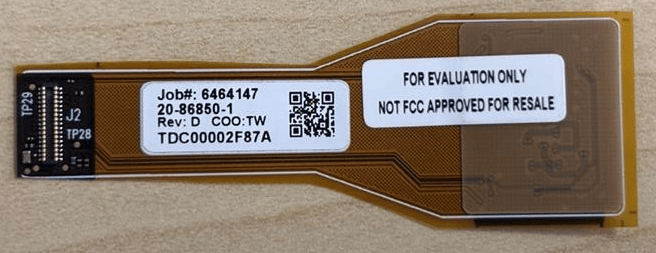
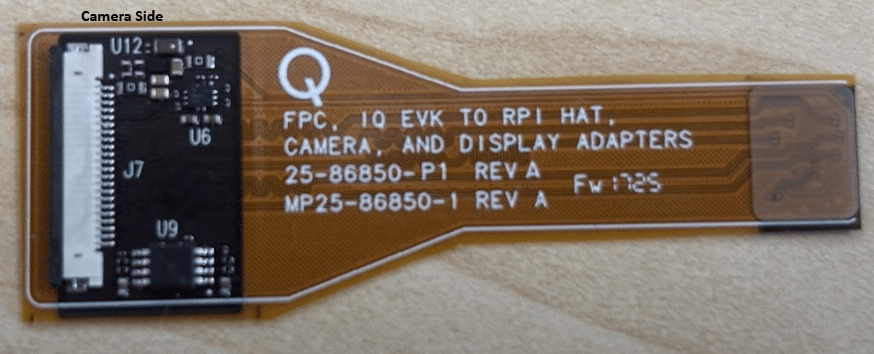
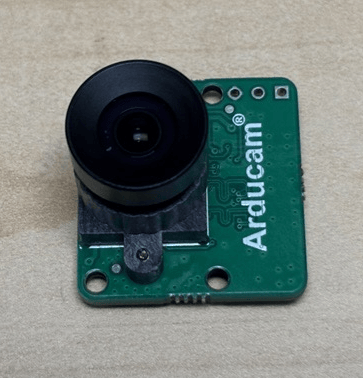 **Flex cable (Arducam 22-pin Raspberry Pi to Qualcomm 30-pin CSI adapter):**

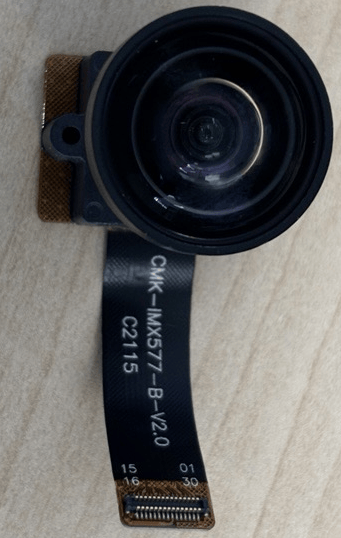
 ### MIPI CSI Camera Sensors
 ## Supported Resolutions
| Resolution | Aspect Ratio | IMX577 | OV9282 |
| ----------- | ------------ | ------ | ------ |
| 4000 × 3000 | 4:3 | Yes | No |
| 3840 × 2160 | 16:9 | Yes | No |
| 1920 × 1080 | 16:9 | Yes | No |
| 1280 × 720 | 16:9 | Yes | Yes |
| 1024 × 768 | 4:3 | Yes | Yes |
| 800 × 600 | 4:3 | Yes | Yes |
| 640 × 480 | 4:3 | Yes | Yes |
| 320 × 240 | 4:3 | Yes | Yes |
Advanced features such as SHDR, LDC, and EIS are not supported on IQ-9075. There is no hardware JPEG encoder — snapshots use a software encoder running on the CPU.
## Camera Streaming
### Single Camera Stream
```bash theme={null}
gst-launch-1.0 -e qtiqmmfsrc name=camsrc camera=0 ! \
'video/x-raw,format=NV12,width=1280,height=720,framerate=30/1' ! fakesink
```
If the pipeline status changes to `PLAYING`, the camera is running. Press `Ctrl+C` to stop.
### Video Encoding
```bash theme={null}
gst-launch-1.0 -e qtiqmmfsrc name=camsrc camera=0 ! \
video/x-raw,format=NV12,width=1280,height=720,framerate=30/1,\
interlace-mode=progressive,colorimetry=bt601 ! \
v4l2h264enc capture-io-mode=4 output-io-mode=5 \
extra-controls="controls,video_bitrate=6000000,video_bitrate_mode=0;" ! \
h264parse ! mp4mux ! filesink location=/home/ubuntu/mux_avc.mp4
```
Retrieve the file:
```bash theme={null}
scp -r ubuntu@:/home/ubuntu/mux_avc.mp4 .
```
### Object Detection Pipeline
## Supported Resolutions
| Resolution | Aspect Ratio | IMX577 | OV9282 |
| ----------- | ------------ | ------ | ------ |
| 4000 × 3000 | 4:3 | Yes | No |
| 3840 × 2160 | 16:9 | Yes | No |
| 1920 × 1080 | 16:9 | Yes | No |
| 1280 × 720 | 16:9 | Yes | Yes |
| 1024 × 768 | 4:3 | Yes | Yes |
| 800 × 600 | 4:3 | Yes | Yes |
| 640 × 480 | 4:3 | Yes | Yes |
| 320 × 240 | 4:3 | Yes | Yes |
Advanced features such as SHDR, LDC, and EIS are not supported on IQ-9075. There is no hardware JPEG encoder — snapshots use a software encoder running on the CPU.
## Camera Streaming
### Single Camera Stream
```bash theme={null}
gst-launch-1.0 -e qtiqmmfsrc name=camsrc camera=0 ! \
'video/x-raw,format=NV12,width=1280,height=720,framerate=30/1' ! fakesink
```
If the pipeline status changes to `PLAYING`, the camera is running. Press `Ctrl+C` to stop.
### Video Encoding
```bash theme={null}
gst-launch-1.0 -e qtiqmmfsrc name=camsrc camera=0 ! \
video/x-raw,format=NV12,width=1280,height=720,framerate=30/1,\
interlace-mode=progressive,colorimetry=bt601 ! \
v4l2h264enc capture-io-mode=4 output-io-mode=5 \
extra-controls="controls,video_bitrate=6000000,video_bitrate_mode=0;" ! \
h264parse ! mp4mux ! filesink location=/home/ubuntu/mux_avc.mp4
```
Retrieve the file:
```bash theme={null}
scp -r ubuntu@:/home/ubuntu/mux_avc.mp4 .
```
### Object Detection Pipeline
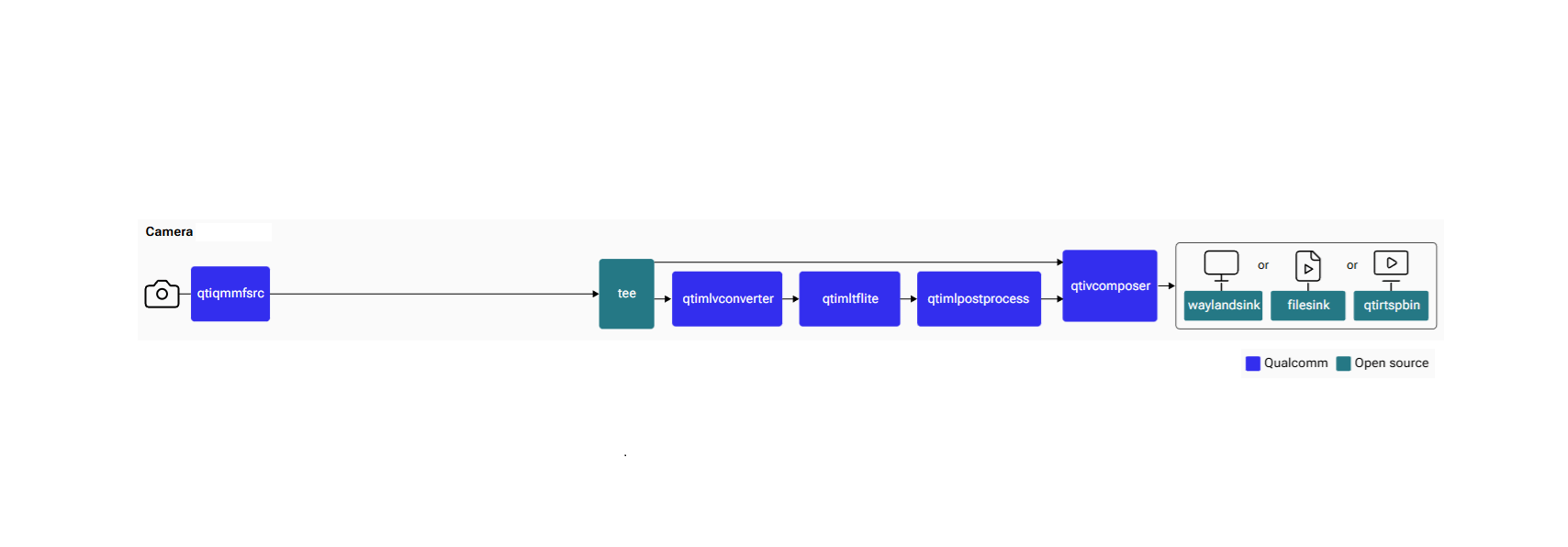 Download required models and assets first:
```bash theme={null}
cd /home/ubuntu
curl -L -O https://raw.githubusercontent.com/quic/sample-apps-for-qualcomm-linux/refs/heads/main/qualcomm-linux/scripts/download_artifacts.sh
sudo chmod +x download_artifacts.sh && sudo ./download_artifacts.sh
```
Then run the object detection pipeline:
```bash theme={null}
gst-launch-1.0 -e qtivcomposer name=mixer \
sink_0::position="<0, 0>" sink_0::dimensions="<640, 360>" \
sink_1::position="<640, 0>" sink_1::dimensions="<640, 360>" \
mixer. ! queue ! waylandsink enable-last-sample=false fullscreen=true \
qtiqmmfsrc name=camsrc_0 camera=0 multicamera-hint=true ! \
video/x-raw,format=NV12,width=1280,height=720,framerate=30/1 ! queue ! \
tee name=split_0 split_0. ! queue ! qtimetamux name=mux_0 ! queue ! \
qtivoverlay ! queue ! mixer. split_0. ! queue ! qtimlvconverter ! queue ! \
qtimltflite delegate=external external-delegate-path=libQnnTFLiteDelegate.so \
external-delegate-options="QNNExternalDelegate,backend_type=htp;" \
model=/etc/models/yolox_quantized.tflite ! queue ! \
qtimlpostprocess settings="{\"confidence\": 75.0}" results=10 module=yolov8 \
labels=/etc/labels/yolox.json ! text/x-raw ! queue ! mux_0.
```
### Video Encoding + Snapshot
```bash theme={null}
gst-pipeline-app -e qtiqmmfsrc name=camsrc camera=0 ! \
video/x-raw,format=NV12,width=1280,height=720,framerate=30/1,\
interlace-mode=progressive,colorimetry=bt601 ! queue ! \
v4l2h264enc capture-io-mode=4 output-io-mode=5 \
extra-controls="controls,video_bitrate_mode=0,video_bitrate=6000000;" ! \
queue ! h264parse ! mp4mux ! queue ! \
filesink location="/home/ubuntu/mux_720_avc.mp4" \
camsrc.image_1 ! "image/jpeg,width=1280,height=720,framerate=30/1" ! \
multifilesink location=/home/ubuntu/frame%d.jpg async=false sync=true \
enable-last-sample=false
```
From the interactive menu: **(1) Ready → (3) Playing → (p) Plugin Mode → (11) camerasrc → (37) capture-image → (1) Snapshot → enter count**
Press Enter → `b` (Back) → `q` (Quit).
```bash theme={null}
scp -r ubuntu@:/home/ubuntu/ .
```
## Multi-Camera with Offline IFE
The IQ-9075 has two IFEs for real-time bayer-to-YUV processing. The **Offline IFE** feature allows a single IFE to process two cameras in offline mode, enabling concurrent streaming from all four cameras.
Download required models and assets first:
```bash theme={null}
cd /home/ubuntu
curl -L -O https://raw.githubusercontent.com/quic/sample-apps-for-qualcomm-linux/refs/heads/main/qualcomm-linux/scripts/download_artifacts.sh
sudo chmod +x download_artifacts.sh && sudo ./download_artifacts.sh
```
Then run the object detection pipeline:
```bash theme={null}
gst-launch-1.0 -e qtivcomposer name=mixer \
sink_0::position="<0, 0>" sink_0::dimensions="<640, 360>" \
sink_1::position="<640, 0>" sink_1::dimensions="<640, 360>" \
mixer. ! queue ! waylandsink enable-last-sample=false fullscreen=true \
qtiqmmfsrc name=camsrc_0 camera=0 multicamera-hint=true ! \
video/x-raw,format=NV12,width=1280,height=720,framerate=30/1 ! queue ! \
tee name=split_0 split_0. ! queue ! qtimetamux name=mux_0 ! queue ! \
qtivoverlay ! queue ! mixer. split_0. ! queue ! qtimlvconverter ! queue ! \
qtimltflite delegate=external external-delegate-path=libQnnTFLiteDelegate.so \
external-delegate-options="QNNExternalDelegate,backend_type=htp;" \
model=/etc/models/yolox_quantized.tflite ! queue ! \
qtimlpostprocess settings="{\"confidence\": 75.0}" results=10 module=yolov8 \
labels=/etc/labels/yolox.json ! text/x-raw ! queue ! mux_0.
```
### Video Encoding + Snapshot
```bash theme={null}
gst-pipeline-app -e qtiqmmfsrc name=camsrc camera=0 ! \
video/x-raw,format=NV12,width=1280,height=720,framerate=30/1,\
interlace-mode=progressive,colorimetry=bt601 ! queue ! \
v4l2h264enc capture-io-mode=4 output-io-mode=5 \
extra-controls="controls,video_bitrate_mode=0,video_bitrate=6000000;" ! \
queue ! h264parse ! mp4mux ! queue ! \
filesink location="/home/ubuntu/mux_720_avc.mp4" \
camsrc.image_1 ! "image/jpeg,width=1280,height=720,framerate=30/1" ! \
multifilesink location=/home/ubuntu/frame%d.jpg async=false sync=true \
enable-last-sample=false
```
From the interactive menu: **(1) Ready → (3) Playing → (p) Plugin Mode → (11) camerasrc → (37) capture-image → (1) Snapshot → enter count**
Press Enter → `b` (Back) → `q` (Quit).
```bash theme={null}
scp -r ubuntu@:/home/ubuntu/ .
```
## Multi-Camera with Offline IFE
The IQ-9075 has two IFEs for real-time bayer-to-YUV processing. The **Offline IFE** feature allows a single IFE to process two cameras in offline mode, enabling concurrent streaming from all four cameras.
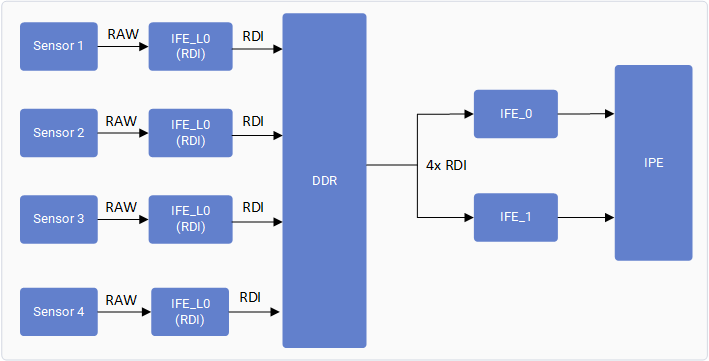
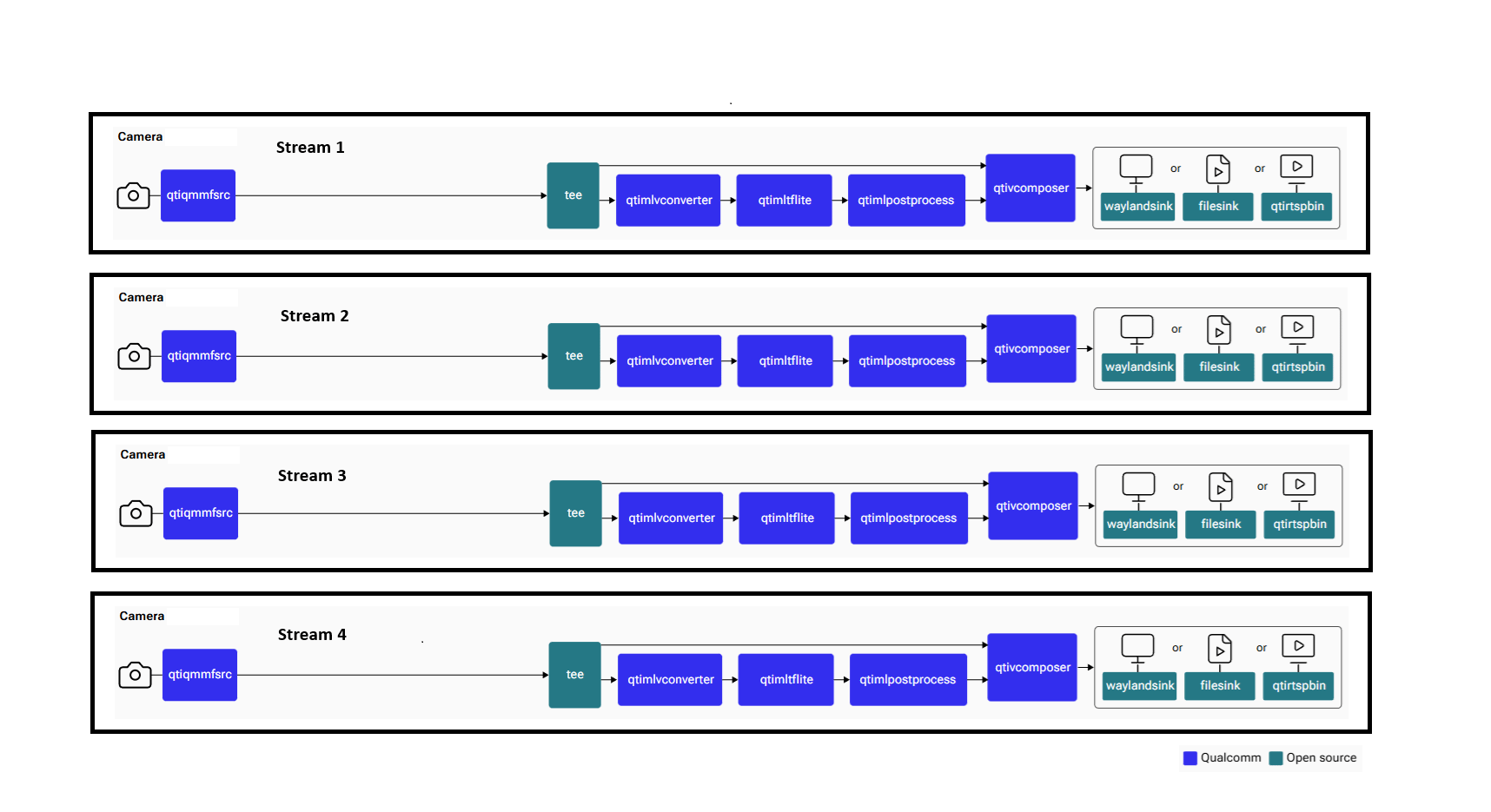 A maximum of two cameras can operate concurrently with real-time IFE. All four cameras can operate concurrently using the Offline IFE feature.
Run the 4-camera AI inference pipeline with `multicamera-hint=true` on each `qtiqmmfsrc` source. See the single-camera object detection pipeline above for the pattern — replicate for `camera=1`, `camera=2`, and `camera=3`.
### Verify Multi-Camera Operation
**User log — look for:**
```
RealTimeFeatureZSLPreviewRawOfflineIFE_0_cam_0 status is now PipelineStatus::STREAM_ON
```
**Kernel log — look for:**
```
Acquired Single IFE[0] SFE[0] OFFLINE: Y with [9 pix] [0 pd] [0 rdi] ports for ctx:1
```
## Troubleshooting
```bash theme={null}
systemctl restart cam-server
# or
pkill cam-server
```
```bash theme={null}
gst-launch-1.0 -e qtiqmmfsrc name=camsrc camera=0 ! \
video/x-raw,format=NV12,width=1280,height=720,framerate=30/1 ! fakesink
```
Collect logs and search for `probe success`:
```bash theme={null}
journalctl -f > /home/ubuntu/log.txt
```
**Expected probe success log:**
```
CAM_INFO: CAM-SENSOR: Probe success, slot:0, slave_addr: 0x34, sensor_id:0x577
```
If no probe success appears, check the flex cable connection or camera module.
Enable CSI debug logs and collect dmesg:
```bash theme={null}
sudo su
echo 3 > /sys/kernel/debug/camera/ife/ife_csid_debug
dmesg -w > /home/ubuntu/dmesg.txt
```
Start the camera and check for SOF/EOF IRQ messages in the log.
### Collect Debug Logs
```bash theme={null}
journalctl -f > /home/ubuntu/user_log.txt # User space logs
dmesg -w > /home/ubuntu/kernel_log.txt # Kernel logs
```
## Resources
| Topic | Link |
| -------------------------------------- | --------------------------------------------------------------------------------------------------------------------------------------- |
| Camera Architecture | [Camera Architecture](https://docs.qualcomm.com/doc/80-70023-17A/topic/camera-architecture.html) |
| Camera Sensor Driver Development | [Camera Sensor Driver Development](https://docs.qualcomm.com/doc/80-70023-17A/topic/camera-sensor-driver-development.html) |
| Customize Camera Use Case and Pipeline | [Customize Camera Use Case and Pipeline](https://docs.qualcomm.com/doc/80-70023-17A/topic/customize-camera-use-case-and-pipelines.html) |
| Customize Advanced Camera Features | [Customize Advanced Camera Features](https://docs.qualcomm.com/doc/80-70023-17A/topic/customize-advanced-camera-features.html) |
A maximum of two cameras can operate concurrently with real-time IFE. All four cameras can operate concurrently using the Offline IFE feature.
Run the 4-camera AI inference pipeline with `multicamera-hint=true` on each `qtiqmmfsrc` source. See the single-camera object detection pipeline above for the pattern — replicate for `camera=1`, `camera=2`, and `camera=3`.
### Verify Multi-Camera Operation
**User log — look for:**
```
RealTimeFeatureZSLPreviewRawOfflineIFE_0_cam_0 status is now PipelineStatus::STREAM_ON
```
**Kernel log — look for:**
```
Acquired Single IFE[0] SFE[0] OFFLINE: Y with [9 pix] [0 pd] [0 rdi] ports for ctx:1
```
## Troubleshooting
```bash theme={null}
systemctl restart cam-server
# or
pkill cam-server
```
```bash theme={null}
gst-launch-1.0 -e qtiqmmfsrc name=camsrc camera=0 ! \
video/x-raw,format=NV12,width=1280,height=720,framerate=30/1 ! fakesink
```
Collect logs and search for `probe success`:
```bash theme={null}
journalctl -f > /home/ubuntu/log.txt
```
**Expected probe success log:**
```
CAM_INFO: CAM-SENSOR: Probe success, slot:0, slave_addr: 0x34, sensor_id:0x577
```
If no probe success appears, check the flex cable connection or camera module.
Enable CSI debug logs and collect dmesg:
```bash theme={null}
sudo su
echo 3 > /sys/kernel/debug/camera/ife/ife_csid_debug
dmesg -w > /home/ubuntu/dmesg.txt
```
Start the camera and check for SOF/EOF IRQ messages in the log.
### Collect Debug Logs
```bash theme={null}
journalctl -f > /home/ubuntu/user_log.txt # User space logs
dmesg -w > /home/ubuntu/kernel_log.txt # Kernel logs
```
## Resources
| Topic | Link |
| -------------------------------------- | --------------------------------------------------------------------------------------------------------------------------------------- |
| Camera Architecture | [Camera Architecture](https://docs.qualcomm.com/doc/80-70023-17A/topic/camera-architecture.html) |
| Camera Sensor Driver Development | [Camera Sensor Driver Development](https://docs.qualcomm.com/doc/80-70023-17A/topic/camera-sensor-driver-development.html) |
| Customize Camera Use Case and Pipeline | [Customize Camera Use Case and Pipeline](https://docs.qualcomm.com/doc/80-70023-17A/topic/customize-camera-use-case-and-pipelines.html) |
| Customize Advanced Camera Features | [Customize Advanced Camera Features](https://docs.qualcomm.com/doc/80-70023-17A/topic/customize-advanced-camera-features.html) |