
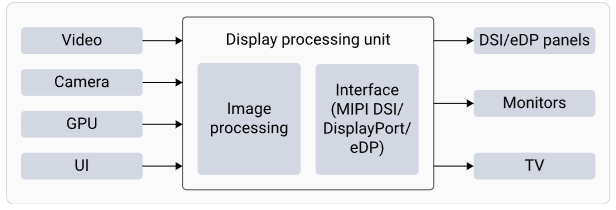
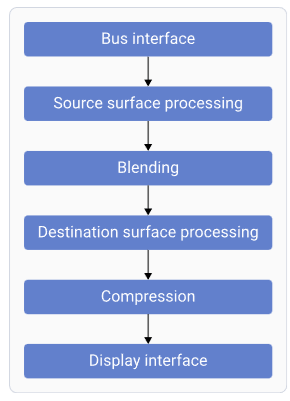
- Composition: blends individual layers into a single frame and sends it to the display panel
- Scaling: supports upscale and downscale of the source image to match the panel resolution
- Color format conversion: converts colors from one color format to another (from YUV to RGB)
- Color space conversion: converts colors from one color space to another (sRGB, P3, and BT2020)
- Color processing: enhances the colors for better visual quality
- Interfaces: Connects with various panels using the mobile industry processor interface display serial interface (MIPI DSI) and TV or monitor with the DisplayPort interface
- MIPI DSI: defines the protocols between a host processor and peripheral devices that adhere to the MIPI Alliance specifications for mobile device interfaces
- DisplayPort: serves as a digital display interface, primarily connecting video sources to display devices such as computer monitors, and can also transmit audio, USB, and other data forms
Display Architecture
DPU Hardware Architecture
Display Software Architecture
Display specifications
Display features
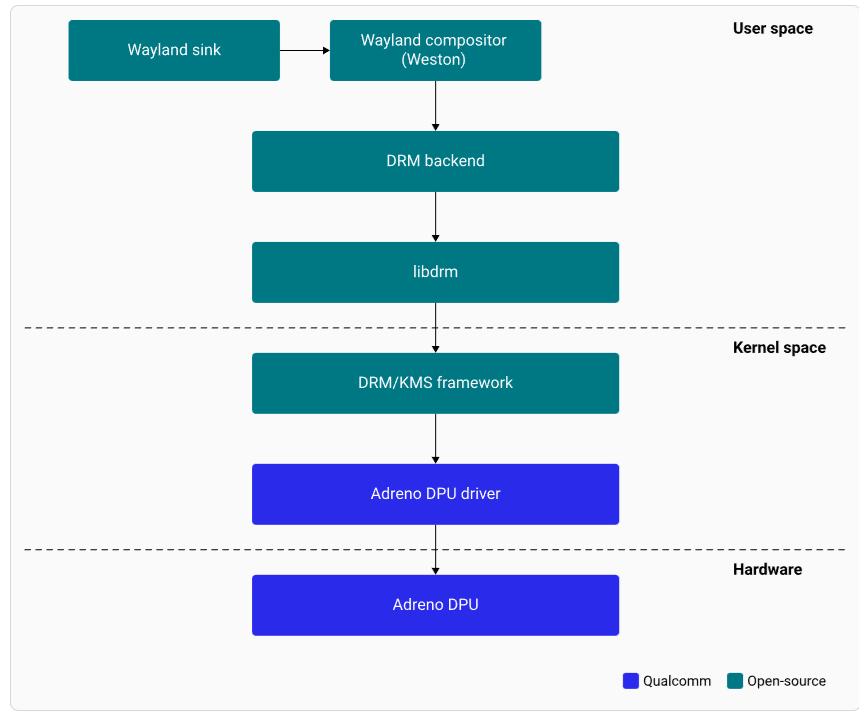
Key features The display subsystem supports the following key features:- Wayland and Weston with upstream protocol
- Weston compositor with direct rendering manager (DRM) backend module
- DSI interface
- 2xDisplayPort with single stream transport (SST)
Setup the DisplayPort
Connect DisplayPort
To view the output of sample applications on your DisplayPort, set up the DisplayPort.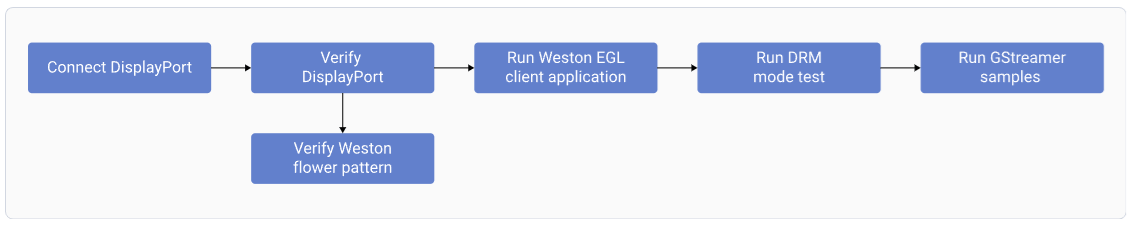
Verify DisplayPort Setup
1
Connect primary display
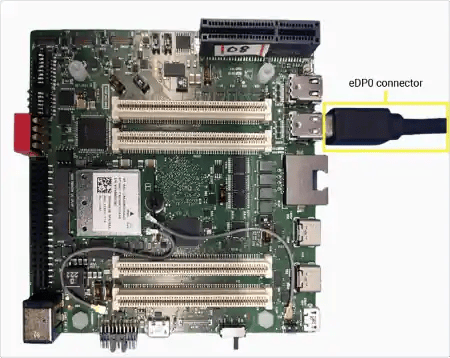
Connect a DisplayPort cable to the eDP0 connector.
2
Connect secondary display (optional)
For dual display, connect a second DisplayPort cable to eDP1.
3
Power on
Power on the device. Weston launches automatically during boot and displays the flower pattern.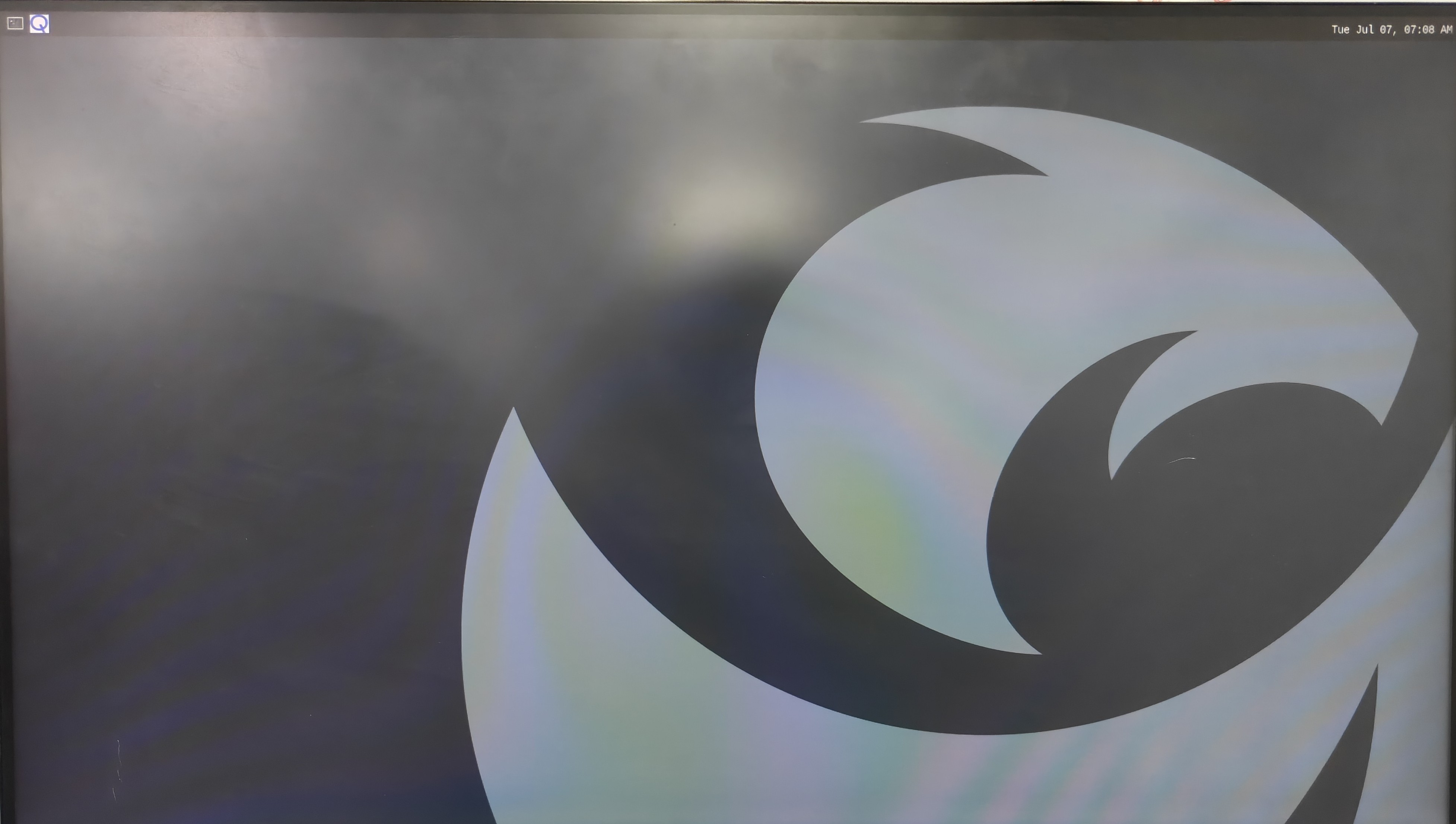
SSH Access
You must enable SSH to access your host device.Testing and Verification
Run the Weston simple EGL client application
Weston simple EGL is a sample test application used to verify the composition and rendering of frames on your DisplayPort. To run the application, run the following commands: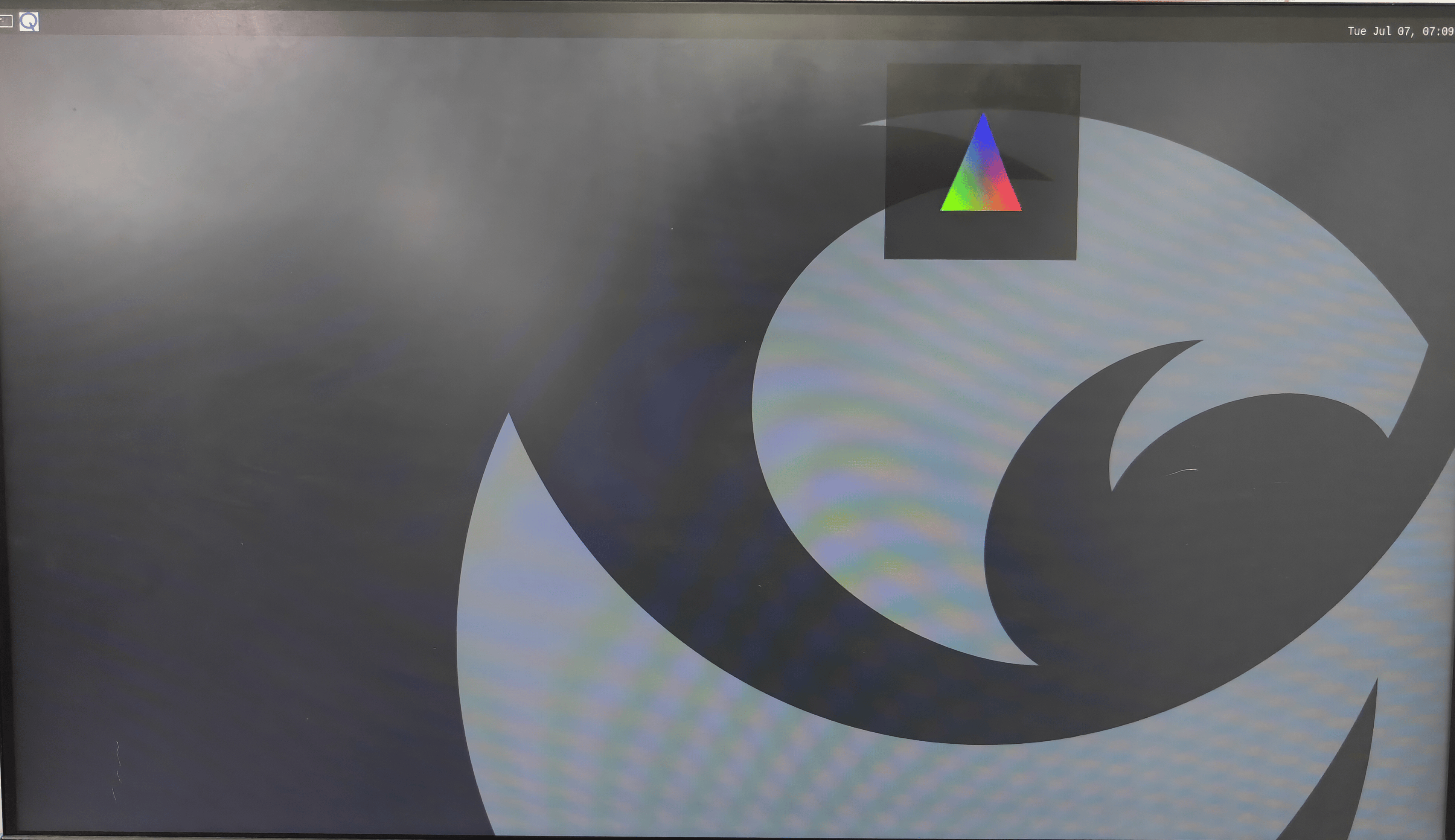
Ctrl+C to terminate.
Run the DRM modetest application
DRM modetest ensures that the DSI and DPU paths are working effectively. To verify the display driver topology, run the DRM modetest. Note You must enable SSH to access your host device. refer Connect SSH- To kill the Weston client application, run the following commands in the device shell:
- To kill all Weston processes, run the following command:
- To view the connector IDs and modes, run the following command:
- To verify DRM modes and connector information, pull the /opt/drm_mode.txt file locally on your host computer. Use the Secure Copy Protocol (SCP) to pull the drm_mode.txt file from the device to your host computer. For example,

- To fetch the connector ID, mode name and refresh rate use the relevant values from the /opt/drm_mode.txt file:
- To start the modetest application, run the following sample command using the connector ID and the mode name retrieved from the /opt/drm_mode.txt file. For example: