SELinux is enabled by default in the qcom-distro-catchall distribution and runs in Enforcing mode.
user:role:type:sensitivity
Note
User is unrelated to a Linux user, and Type is unrelated to the kind of object it is.
- A set of valid users, roles, and types is defined in the policy.
- Different objects are labeled with the same security context.
- The MAC mechanism of SELinux security policies is implemented using:
- Type enforcement (TE)
- Role-based access control (RBAC)
- Refpolicy Targeted
- Types enable the policy to specify the allowed operations.
Figure : SELinux process
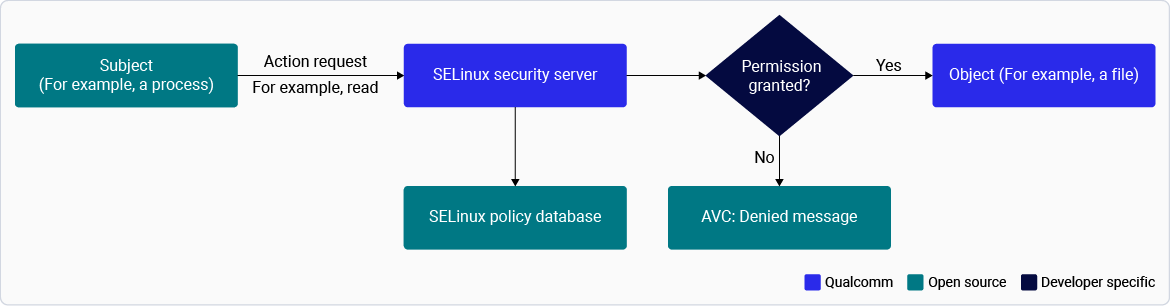 The following procedures explains how to verify and enable SELinux and modify SELinux modes.
Note
By default, SELinux is enabled and configured in Enforcing mode to provide mandatory access control and strengthen platform security. During development and debugging, SELinux can be temporarily switched to Permissive mode to log policy violations without enforcing access restrictions. For production and commercial deployments, Qualcomm recommends keeping SELinux in Enforcing mode
The following procedures explains how to verify and enable SELinux and modify SELinux modes.
Note
By default, SELinux is enabled and configured in Enforcing mode to provide mandatory access control and strengthen platform security. During development and debugging, SELinux can be temporarily switched to Permissive mode to log policy violations without enforcing access restrictions. For production and commercial deployments, Qualcomm recommends keeping SELinux in Enforcing mode
Verify and modify SELinux mode
If SELinux is enabled, you may not be allowed to update the anti-rollback protection flag.
- Check the current SELinux configuration of the device (Enforcing or Permissive mode):
- If it’s set to the Enforcing mode, run the
setenforce command to change the mode.
- Connect to the device using SSH.
- Change the SELinux mode by using the following commands.
- To switch the device to Enforcing mode:
- To switch the device to Permissive mode:
- To recheck the current configuration of the device (Enforcing or Permissive mode):
SSH Enablement on SELinux build
By default, ssh login is restricted in selinux enforcing mode.
-
Build time enablement:
-
Runtime Enablement
- Login to serial console
- Run the following command:
To switch to Enforcing mode (restrictive) or Permissive mode (non-restrictive with logging), follow these steps:
- To enable or disable SELinux:
- To disable SELinux for the build, set
DEFAULT_ENFORCING to disabled in the SELinux distro configuration file:
- To enable SELinux, set
DEFAULT_ENFORCING to enforcing (set by default).
- Use policy version 35.
- To add policies for SELinux, see upstream refpolicy.
- Check the system status with
getenforce on target. This command returns one of the three values:
- Enforcing
- Permissive
- Disabled
- To change the mode, select a mode at runtime by running
setenforce with a number (this change won’t persist after reboot).
- To persist after reboot:
- Connect to the device using SSH. For instructions, see Qualcomm Linux Build Guide.
- Edit SELINUX= to one of the three supported values:
enforcing, permissive, or disabled in /etc/selinux/config.
- Reboot the device using the following command:
- To specify the SELinux mode in the build: Change the
DEFAULT_ENFORCING build flag to one of the three supported values: enforcing, permissive, or disabled.
- The SELinux Disabled mode leaves behind many code paths that go through the SELinux framework. These code paths aren’t useful for KPI testing or verifying bugs in the SELinux framework. It also doesn’t allow any more access than Permissive mode.
To disable the feature for testing, remove SELinux from
DISTRO_FEATURES:
Next steps