

Key Features
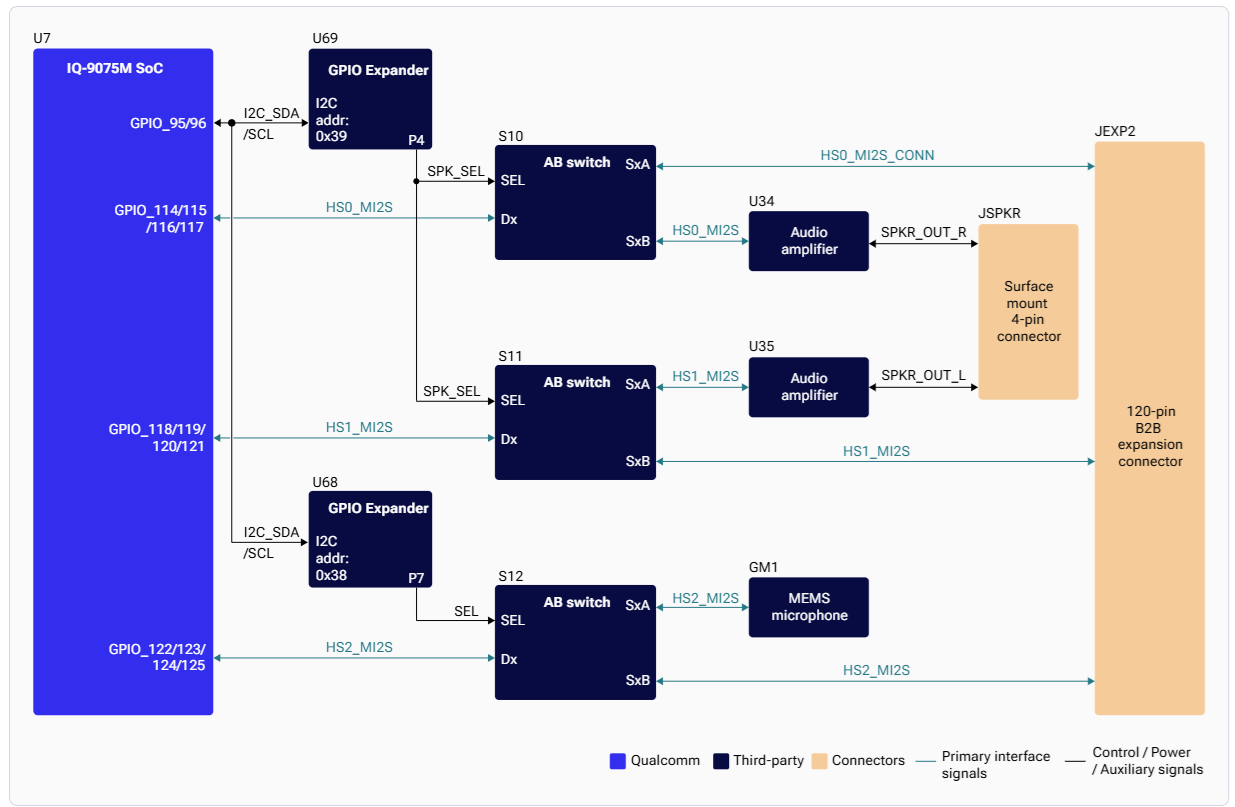
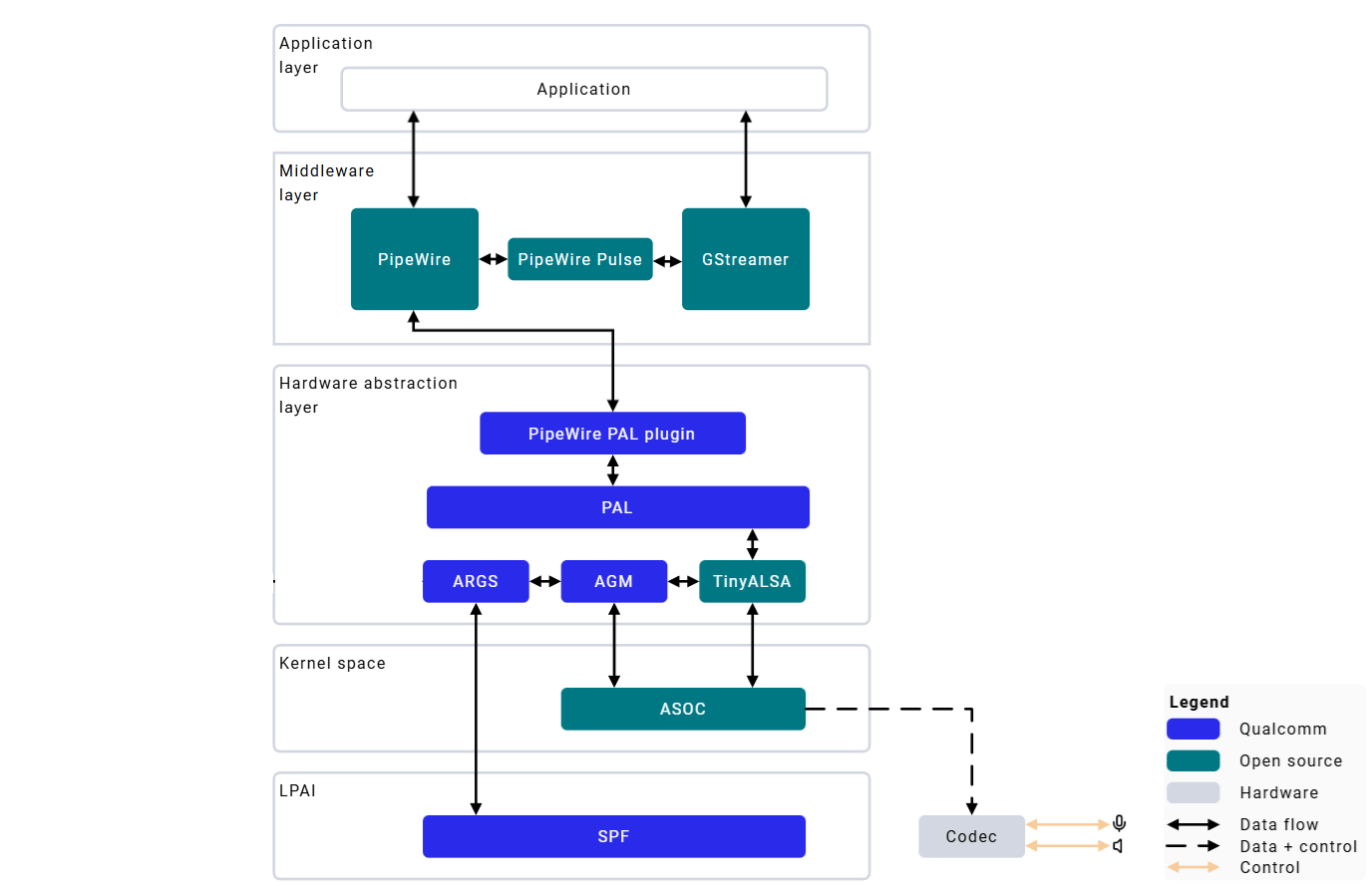
- Low Power AI (LPAI) subsystem for efficient audio processing
- PipeWire multimedia server for low-latency audio routing
- Hardware-accelerated encoding/decoding
- Fluence ECNS — advanced echo cancellation and noise suppression
- Multiple audio interfaces — I2S, TDM, SoundWire
Hardware Configuration
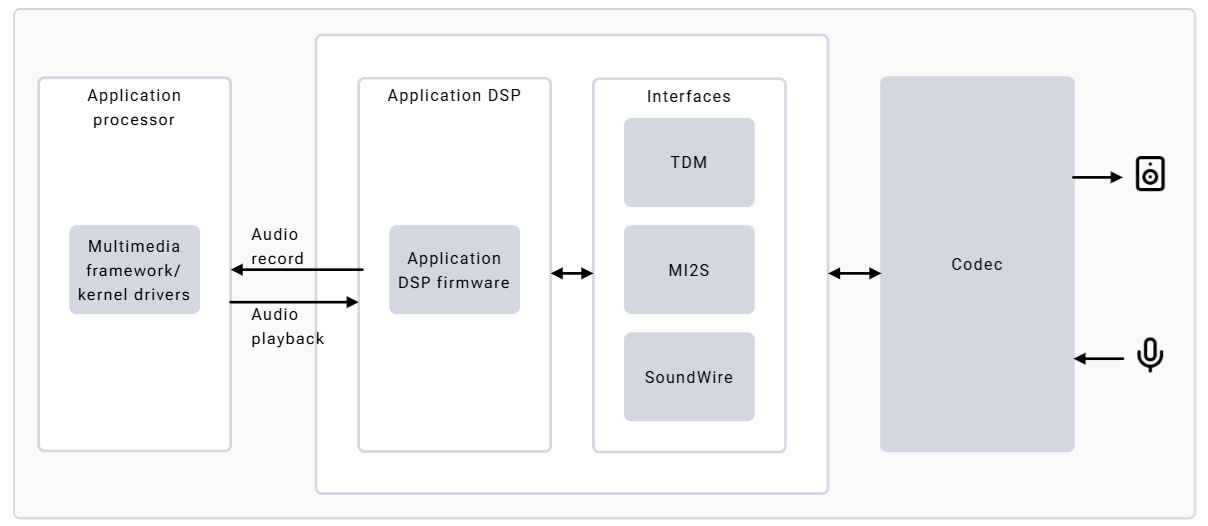
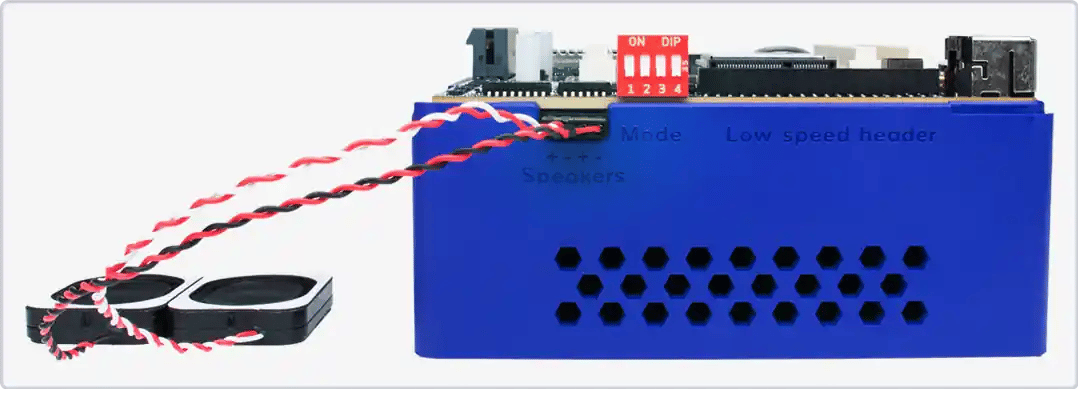
- Speakers: Onboard MAX98357 I2S amplifiers; connect the two supplied mini speakers to hear output. HS0_MI2S is shared between left and right for stereo.
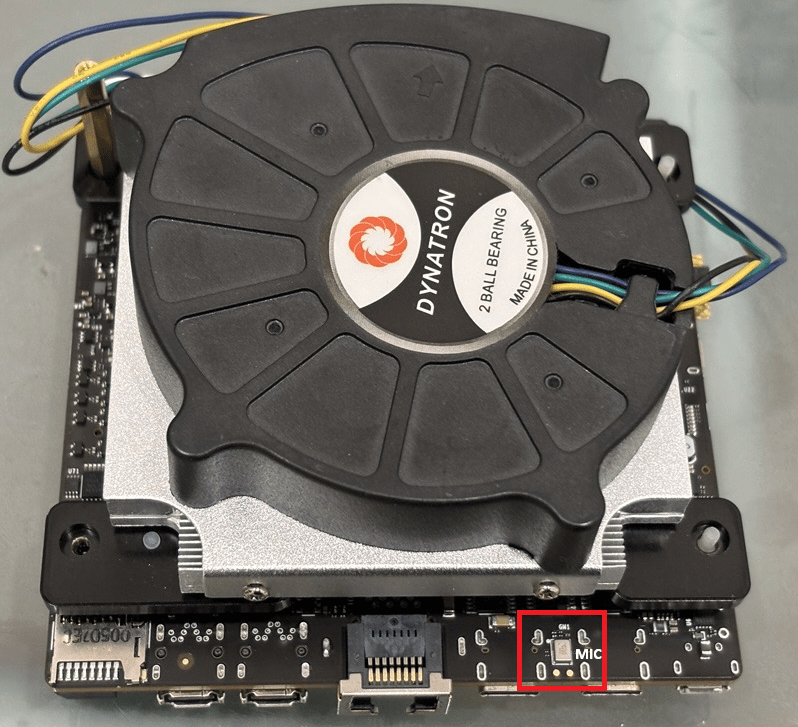
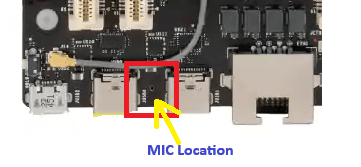
- Microphone: Single onboard microphone (MMICT5848) on HS2_MI2S, configured to left channel by default
Architecture
Configuration Files
Verify Audio Stack
/proc/asound/cards lists at least one card, and aplay -l and arecord -l each show a device. For example:
wpctl status should list a default Sink and Source (each marked with *). If /proc/asound/cards is empty or wpctl status shows no default sink or source, the audio stack did not come up: see the Troubleshooting section below.
Audio Playback and Capture
PipeWire Playback
1
Push audio file to device
Copy a short test clip to the device so you have something to play.
test.wav is any small PCM WAV file (48 kHz, 16-bit stereo works well): use one from the host, or create one with ffmpeg -f lavfi -i "sine=frequency=440:duration=5" -ar 48000 -ac 2 test.wav.2
Set default sink and volume
3
Play audio
pw-play prints a progress and peak-level readout while it runs: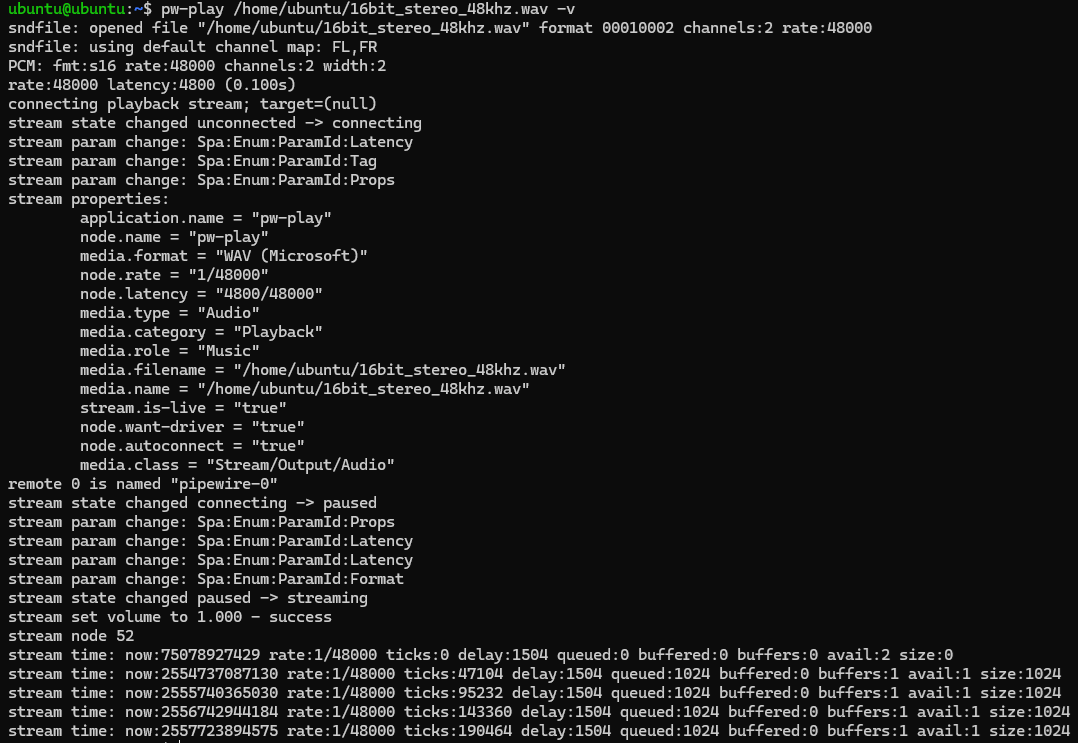
Ctrl+C to stop.PipeWire Record
1
Set default source and volume
2
Start recording
Ctrl+C to stop.A value of
1.0 represents 100% volume.GStreamer Audio
- Capture
- Playback
Log Capture
Troubleshooting
No Audio Output During Playback
No Audio Output During Playback
- Verify speakers are connected properly
- Increase volume if at 0%
- Restart WirePlumber if PipeWire is not routing correctly
No Audio Capture from Microphone
No Audio Capture from Microphone
Audio Playback Stuttering or Crackling
Audio Playback Stuttering or Crackling
PipeWire Service Not Starting
PipeWire Service Not Starting